Key takeaways
- Most productivity stacks fail at the seams between tools, not inside any one of them.
- Context switching is the measurable cost. Every jump between apps is time you do not get back.
- Connect what you already use rather than adding another app to the pile.
Why Most Productivity Stacks Fail – and How FocusBox Integrations Solve the Problem
The Problem with Disconnected Productivity Tools
Most people assemble a productivity stack from multiple apps – Todoist for tasks, Notion for projects, a timer, maybe a habit tracker. At first, this patchwork feels efficient. In practice, it often leads to fragmented workflows. Managing multiple tools can consume as much energy as the work itself. Tasks slip through the cracks, deadlines get lost between apps, and every switch between tools chips away at your focus.
A major obstacle is manual task management. Copying tasks from Notion into your timer, or checking several dashboards to see what’s next, is more than tedious – it drains cognitive bandwidth. Every extra hop between apps is another chance to lose your place, and for many people, ADHD or not, that friction is exactly where procrastination starts.
The Hidden Costs of Context Switching
Switching between disconnected apps isn’t just inconvenient. Context switching imposes a real productivity cost. Each transition forces your brain to re-orient, recall your last step, and rebuild momentum. For users with ADHD, this effect is even more pronounced. But even for others, constant app-hopping can derail a productive morning.
- Lost time: Manually syncing tasks consumes minutes each day, adding up over weeks.
- Increased stress: The fear of missing something – an overdue task or unlogged meeting – leads to repeated checking and second-guessing.
- Decreased motivation: The more friction in your workflow, the harder it is to maintain routines and momentum.
Why Integrations Outperform Feature Overload
Adding more features rarely resolves the chaos of a scattered stack. What actually improves productivity is integration. FocusBox integrations bring your tasks from tools like Todoist and Notion, and your events from Google Calendar, into one place where you can timebox them. Instead of toggling between five apps while you work, you get a distraction-free workspace with your plan, your timer and your focus sounds side by side.
The impact is immediate. Import tasks from Notion, generate a timeboxed to-do list with AI, and track focus sessions – all within FocusBox. With ambient sounds, ADHD-friendly timers, and a full-screen focus mode, you’re not just streamlining your workflow. You’re protecting your attention span, one integration at a time.
Key Insight: The breakthrough in productivity isn’t more features – it’s seamless integrations that remove friction and let you focus on what matters.
When you stop battling your stack and start connecting it, you reclaim mental energy. That’s the promise of FocusBox integrations: less juggling, less distraction, and more meaningful progress – regardless of how complex your workflow is.
Step 1: Assess Your Current Productivity Tool Stack
Start With a Clear-Eyed Audit
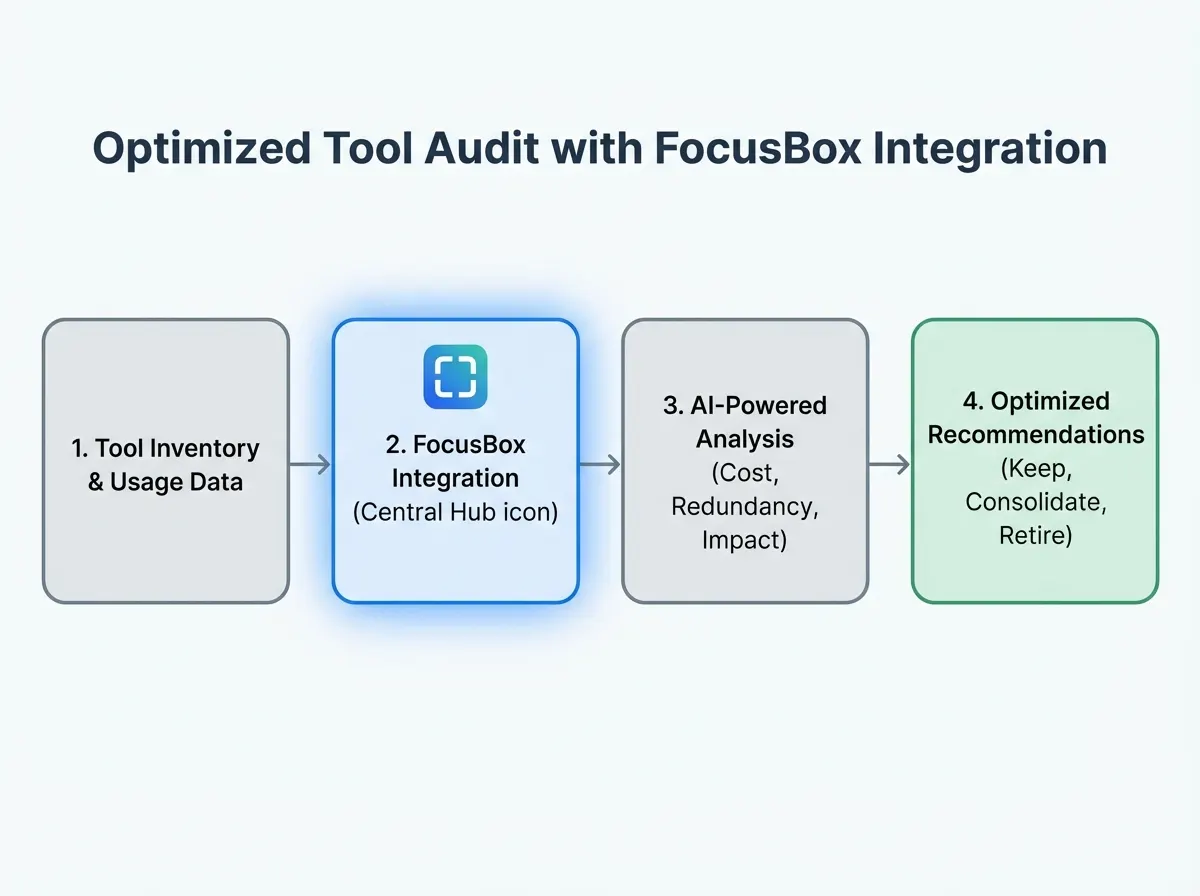
Before exploring FocusBox integrations, take an honest look at your current tool stack. Many people juggle multiple timer apps, manage projects in more than one tool, and still rely on sticky notes. Inventory everything: your calendar, task manager, communication tools, and any productivity add-ons you’ve accumulated.
Look for overlapping features – maybe your calendar now handles reminders, or your project tool has its own to-do lists. These overlaps create friction and confusion. Integration gaps are just as problematic. If your task list and timer don’t communicate, you’ll duplicate effort and miss deadlines, no matter how well-intentioned your system is.
Self-Assessment Checklist
| Check Item | What to Look For | Why It Matters |
|---|---|---|
| To-Do/Task Manager | Is your main tool Todoist, Asana, ClickUp, Notion, Jira or something else? | FocusBox can import tasks from Todoist, Asana, ClickUp, Notion and Jira, so you don’t have to retype them. |
| Calendar App | Are you using Google Calendar, Outlook, or Apple Calendar? Does your stack reflect your real schedule? | Accurate calendars are essential for effective timeboxing and scheduling. FocusBox imports events from Google Calendar. |
| Timer/Pomodoro Tools | How many timers do you use? Are any ADHD-friendly or do they provide visual/audio cues? | Redundant timers create noise. FocusBox’s built-in ADHD timers with alarms can replace most standalone apps. |
| Communication Platforms | Is Slack, Teams, or Discord part of your workflow? Do notifications disrupt focus? | Identifying distraction sources helps you use FocusBox’s ambient sounds and full-screen focus mode more effectively. |
| Project/Knowledge Apps | Are you duplicating projects across several tools? Is data spread out? | Picking one source for tasks, or drafting a plan with AI project generation in FocusBox, prevents fragmentation and saves time. |
Why This Audit Sets You Up for Success
Skipping this step is the main reason most productivity integrations underperform. FocusBox integrations work best when you know what to keep, consolidate, or discard. By clarifying your needs and pinpointing integration gaps, you get more out of every FocusBox feature – especially those designed for users with ADHD.
Key Insight: A thorough audit prevents tool overload and ensures every FocusBox feature you enable serves a clear, essential purpose – not just another icon in your dock.
Step 2: Connect FocusBox with Google Calendar to See Your Real Schedule
Connecting FocusBox with Google Calendar brings your calendar events into FocusBox, so your to-dos and your meetings sit in one place. When you can see both, you reduce context-switching, missed deadlines, and the confusion of scattered schedules. Here’s how to set this up, what to watch for, and why it keeps timeboxing and daily routines on track.
How to Enable Google Calendar Integration in FocusBox
Open the Integrations entry in the FocusBox app and pick Google Calendar. You’ll be sent to Google’s own sign-in and authorization screen to connect your account. Once connected, you can import your calendar events into FocusBox.
With your events in FocusBox, you plan your timeboxes around your real day – meetings and appointments included. This view shows your actual workload, not just the obligations others have booked. For those practicing timeboxing or managing ADHD, seeing fixed events next to the work you want to do provides structure that a plain task list can’t. It also helps with waiting mode, the stalled hours before an appointment: once the event sits in your plan, you can fill the gap before it with short timeboxes.
Benefits: Realistic Timeboxing and a Single View
With your events imported, you can timebox tasks into the gaps that are actually free – eliminating guesswork about when you’ll tackle each item. Your workload is visible in context with your day, reducing missed deadlines and last-minute surprises.
Because your meetings and your tasks are in one place, you’re no longer toggling between windows to work out when you have time. Planning a day that ignores a 2pm meeting becomes much less likely.
Common Setup Mistakes (and How to Avoid Them)
- Connecting the wrong account: If you have a personal and a work Google account, check which one you’re signed into on the authorization screen before you approve access.
- Treating FocusBox as your calendar: The import brings events into FocusBox so you can plan around them. Keep creating and editing meetings in Google Calendar, and re-import when your day changes.
Before/After Examples: Getting Calendar Import Right
| Before | After |
|---|---|
| Your FocusBox plan and your Google Calendar live apart. You plan a morning of deep work, then discover a meeting in the middle of it. Double-bookings and missed appointments are common. | Your Google Calendar events are imported into FocusBox. You see tasks and meetings in one place and timebox your work around what is already booked. |
The after scenario removes the back-and-forth between apps and reduces the risk of overlooking key commitments. Seeing everything together means fewer surprises and less mental overhead. The result: more time spent doing, less time checking.
Key Insight: The value of FocusBox integrations is in seeing all your obligations – tasks and events – in a single, actionable schedule.
Actionable Playbook: Getting the Most from the Calendar Import
- Connect the right account. Use the Google account that holds the calendar you actually work from.
- Review what you approve. Read the authorization screen before you accept it, as you would for any third-party app.
- Import at the start of your planning. Bring in the day’s or week’s events first, then timebox tasks into the free time.
- Re-import when plans change. If meetings move, import again before you rearrange your timeboxes.
- Test with a quick check. After your first import, compare a day in FocusBox with the same day in Google Calendar to confirm what came across.
Even experienced users can overlook details. Following this checklist ensures your FocusBox integrations provide clarity – without introducing new complications.
Step 3: Import Tasks from Todoist, Asana, ClickUp, Notion or Jira
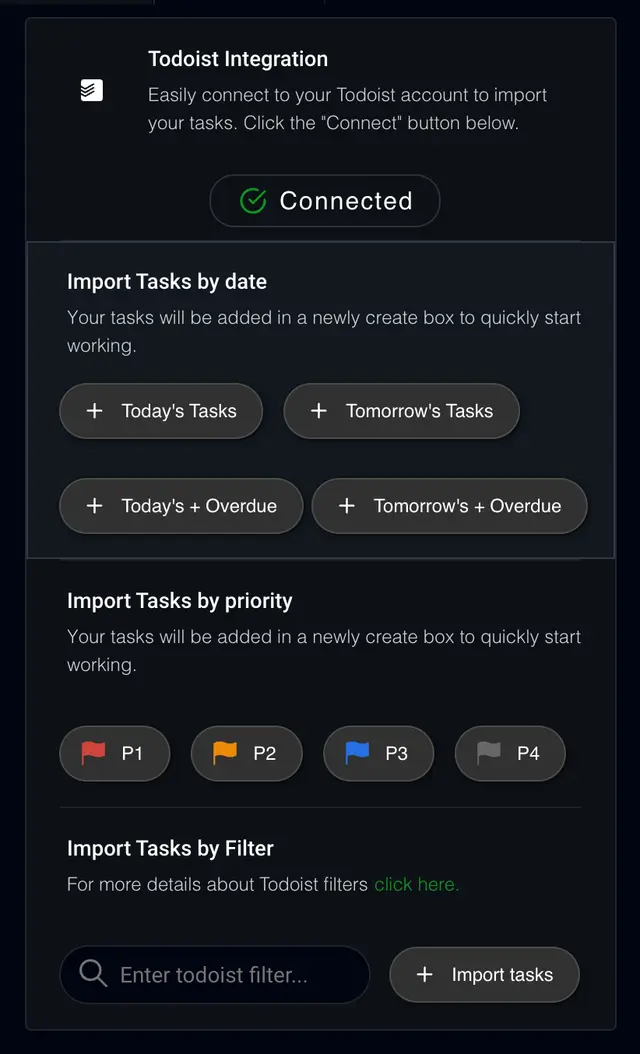
Manual data entry is a major productivity drain. If your tasks live in Todoist, Asana, ClickUp, Notion or Jira and you retype them into a timer or a to-do list, duplicated effort and forgotten tasks are common pitfalls. FocusBox integrations import those tasks into FocusBox, so you can timebox them and work through them with timers and ambient sounds, while your task manager stays the record.
Connecting Your Task Manager to FocusBox: The Setup
- Open Integrations in FocusBox. Pick your tool: Todoist, Asana, ClickUp, Notion or Jira.
- Connect your account. You’ll be taken to the provider’s own sign-in and authorization screen. Approve access with the account and workspace that holds your tasks.
- Import your tasks. Bring the tasks into FocusBox. With Notion, you pick a database and queue its tasks. With Jira, you can pull epics, stories and subtasks from your boards.
- Timebox them. Once imported, give each task a timebox and start a timer, with ambient sounds if they help you focus.
FocusBox is independent and is not affiliated with Todoist, Asana, ClickUp, Notion or Atlassian.
Preventing Redundancy and Duplicates
Duplicate tasks and competing versions of the same list can undermine your workflow. A few habits keep things clean:
- Import from one place: If the same task lives in two tools, import it from only one of them, or you’ll see it twice.
- Keep the source tool as the record: Your task manager stays the place where tasks are created, assigned and closed. FocusBox is where you plan and do the work.
- Import only what you’ll work on soon: Today’s or this week’s tasks, not your entire backlog.
Key Insight: Importing everything creates clutter. A small, current import keeps your FocusBox plan predictable and focused.
If tasks you expected are missing, check that you authorized the right account and workspace, then reconnect the integration and import again.
Actionable Playbook: Keeping Task Lists Organized
- Designate a single “this week” list, project or view in your task manager. Import from there into FocusBox, and keep everything else in the source tool.
- Clean up before you import. Close finished tasks and merge obvious duplicates in the source tool first.
- Close completed work in the source tool too. This keeps your team’s record accurate and stops old tasks from coming back in your next import.
- Set a weekly audit reminder. Review your FocusBox plan against your task manager to clean up duplicates or completed tasks.
Be selective about what you import. Keeping your FocusBox plan focused on current priorities prevents distraction and overload.
Importing your tasks into FocusBox is about more than saving clicks. It’s about building a distraction-free workflow that lets you focus on what matters – without noise or manual busywork.
Step 4: Set Reminders and Alarms Around Your Timeboxes
Use FocusBox Reminders for Timely Alerts
Timely prompts are the backbone of a productive workflow. FocusBox has reminders and alarms, so once your tasks and events are in FocusBox, the prompts to start, switch or wrap up can come from the same place as your plan.
A simple setup: a reminder shortly before a timebox begins, and an alarm when it ends. That way you don’t have to watch the clock while you work.
Key Insight: The power of reminders is in surfacing only the alerts that drive action – too many, and you risk drowning in noise.
Choosing Which Reminders You Need
Be deliberate about what earns a reminder. Deadlines, the start of an important timebox and a short break are good candidates. Routine, low-stakes tasks usually aren’t.
This matters most on busy days. If your calendar is packed, a reminder before your one protected focus block helps you actually start it, while an alarm at the end helps you stop and move on instead of overrunning into the next meeting.
Pitfalls to Avoid: Alert Overload and Missed Alerts
Many people stumble by setting a reminder for everything. This leads to notification fatigue, where the important prompts get lost. Audit which alerts actually help you move faster. Start small – enable only essential reminders, then expand if needed.
On the other hand, too few alerts can result in missed deadlines. If reminders are being overlooked, check your device’s notification settings for FocusBox and make sure sound is on where you need it.
- Review which reminders you have set for the day.
- Test with a sample timebox to confirm the alarm reaches you.
- Check your device’s notification permissions if alerts stop appearing.
Used intentionally, reminders and alarms keep deadlines visible and your timeboxes on schedule – without overwhelming you.
Step 5: Advanced FocusBox Integrations – Todoist, Notion, and More
To take your productivity system further, combine several FocusBox integrations: Todoist, Asana, ClickUp, Notion, Jira and Google Calendar. Imports bring your existing tasks and events in, and FocusBox’s AI tools help you plan the work that isn’t written down anywhere yet.
Adding Todoist and Notion as Data Sources in FocusBox
Connecting your Todoist account lets you import existing tasks, so you don’t have to rewrite your to-do list. If you organize projects in Notion, you pick a database and queue its tasks in FocusBox. The same applies to Asana, ClickUp and Jira: connect once, then import the tasks you want to work on.
This is especially valuable if you manage multiple contexts – client work in Notion, daily actions in Todoist, and personal reminders in FocusBox. You gain one working view, without toggling between browser tabs to track priorities.
Pairing Imports with the AI Project Generator
FocusBox also has an AI to-do list and AI project generator. Describe a project in plain text, and FocusBox generates tasks and subtasks for it. That is useful for work that isn’t broken down yet: import the tasks you already have from your task manager, then use the generator for the new project nobody has planned.
Key Insight: AI-generated task lists reduce administrative busywork, freeing up time for progress on your priorities.
Treat what the generator produces as a first draft. Edit the tasks, drop what you don’t need, and then timebox the rest.
Limits of Multi-Tool Workflows: Complexity and Stale Copies
Every advanced integration comes with tradeoffs. The more tools you connect, the more accounts and permissions you need to manage. It’s easy to lose track of where a task originated, or which tool is the “source of truth.”
An imported task is a copy for planning and focus. If a teammate changes it in the source tool after you import, your FocusBox copy won’t necessarily reflect that until you import again. This is a reality for any productivity stack built across multiple platforms.
If your workflow depends on up-to-the-minute accuracy, or you’re collaborating with a large team, check the source tool before you start a task and re-import when things change.
Combining Integrations with Other FocusBox Features
Combine FocusBox integrations with other features. Use the AI project generator to break an imported project into subtasks, and productivity insights to see where the time went.
As integrations become more sophisticated, the key is knowing when to automate and when to keep things simple. With the right approach, FocusBox bridges the gap between productivity theory and daily focus.
Step 6: Customizing FocusBox Integrations to Match Your Workflow
Personalizing for Focus and Minimalism
Customizing FocusBox integrations is about making your system work for you. Choose which tools to connect, decide what to import and when, and set reminders that support focus. For example, with Notion, you might import only the database for your current project rather than every database you own. This small choice can mean the difference between digital noise and deep work.
Many users with ADHD or those practicing timeboxing benefit from minimizing notifications. Set reminders and alarms conservatively. You can always add more if needed.
Balancing Automation with Control
Connecting everything is tempting. Importing all your Todoist tasks, every Google Calendar event and every Notion database sounds appealing – until your FocusBox plan becomes cluttered. The most effective workflows use imports for routine work, but keep manual control over priorities.
- Match how often you import to your review cadence – daily or weekly is usually enough.
- Be selective – import only the projects, databases or boards that matter now.
- Customize which alerts matter. Visual and audio alarms are great for deadlines, but avoid reminders for every minor task.
Sometimes, the best customization is disabling features you don’t need.
Pitfall: Too Much Customization Kills Productivity
The flexibility of FocusBox integrations can lead to over-engineering. If you spend more time perfecting your setup than working, it’s time to simplify.
A common scenario: imports from several platforms, a separate routine for each project, and overlapping reminders. Instead of clarity, you create confusion – and lose sight of the original goal: focus.
Key Insight: The best FocusBox integration setups are simple enough to keep you focused, but flexible enough to fit your real workflow.
Customization is a tool, not an end in itself. Revisit your settings monthly, trimming anything that adds noise without value. Anchor every change to the question, “Does this help me focus or just complicate things?”
Step 7: Measuring Productivity Gains from FocusBox Integrations
Getting Real About Productivity Metrics
Many people overestimate productivity gains from new tools. The real test is data. FocusBox has reports and productivity insights, so you can look at your focus time and completed work, and see whether your integrations are making a difference or just adding noise.
Keep the question simple. If you’ve connected Todoist or Notion, are the tasks you import getting finished, or just lengthening your to-do list? Your reports, plus a quick look at the source tool, will tell you.
Spotting Integration-Driven Improvements
Once you’ve set up FocusBox integrations, look for real productivity lifts: fewer duplicate tasks, less manual entry, and more tasks moving from “in progress” to “done.” Fewer app switches during a session usually means fewer chances to get distracted.
For example, retyping a week’s worth of tasks from your task manager is slow, error-prone copy-paste. Importing them instead removes that step, and your reports show whether the imported work actually got done.
Key Insight: The goal of integrating your task manager and calendar is more focus time and more finished work. Check your own numbers rather than assuming the gain.
Productivity Metrics Audit: Score Your Progress
Use this self-audit table to track a few key metrics. Pull what you can from your FocusBox reports, and keep a simple tally for the rest. Be honest – your progress depends on it.
| Metric | Where to Find It | Why It Matters | Your Score |
|---|---|---|---|
| Total Focus Sessions Completed | Your FocusBox reports | Shows consistency with timeboxing and sustained attention | |
| Average Focus Time per Day | Your FocusBox reports | Measures deep work – not just busywork | |
| Tasks Imported via Integrations | Your own weekly tally | Captures workflow automation and reduced manual entry | |
| Imported Tasks Completed | Your FocusBox plan and the source tool | Reveals real follow-through on imported tasks | |
| Days with Few Interruptions | Your own weekly tally | Tracks improvement in managing interruptions | |
| Consecutive Productive Days | Your own weekly tally | Motivates habit-building through visible progress |
One honest limitation: not every improvement is captured by numbers alone. Sometimes, the biggest shift is feeling less overwhelmed. Use your reports as a guide, but also check in on your sense of focus and flow.
Ultimately, productivity is about building systems that let you do more of your best work with less friction. With FocusBox integrations and a commitment to honest self-audit, that goal becomes much more achievable.
Step 8: Before/After – How FocusBox Integrations Transform Your Workflow
Before: Juggling Tools, Copying Tasks, Losing Focus
| Before | After |
|---|---|
| Manually copy tasks from Todoist to your timer app each morning. Set separate reminders on your phone, in chat and in your calendar. Forget a meeting because your to-do list and your calendar live apart. Waste time hunting for deadlines scattered across tools. | Todoist tasks are imported into your FocusBox to-do list. Reminders and alarms for your timeboxes come from FocusBox. Google Calendar events are imported, so you plan around your meetings. See today’s tasks and events in one distraction-free plan. |
Why the New Workflow Wins
The difference is mental bandwidth. Before FocusBox integrations, every “quick” copy-paste or reminder setup chips away at your attention. Multiply that by a dozen tasks a week, and you burn hours on administrative overhead instead of deep work.
After connecting your tools, most of the manual work disappears. You switch between tabs and notifications far less. Everything you need while you work – tasks, timers, ambient focus sounds, even celebration prompts – lives in one place. Your energy shifts from “where do I find this?” to “what’s the next important thing to do?”
Key Insight: When your tools communicate, you reclaim the mental space that actually moves projects forward.
Specific Example: Weak vs. Strong Integration
- Weak: You export a list from Notion, then manually retype priorities into FocusBox and re-enter them in your calendar.
- Strong: You connect Notion and Google Calendar to FocusBox once. Each morning, you queue the tasks from your Notion database, import the day’s events, and timebox the work around your meetings – no retyping.
The strong version works because it eliminates duplicate effort, and your task manager stays the record while FocusBox holds today’s plan. You’re not patching holes; you’re building a workflow designed for focus.
The bottom line: FocusBox integrations aren’t just about saving clicks – they’re about protecting your best attention for work that matters.
Step 9: Troubleshooting Common FocusBox Integration Issues
Diagnosing Failed Integrations
Integrations make a real difference, but they’re not immune to hiccups. The most common culprit is permissions. Connecting FocusBox to Todoist, Notion or another tool can fail if you didn’t complete the provider’s authorization screen, or approved access for the wrong account. Double-check the authorization prompts during setup. If you skip a step, the connection won’t work. If tasks stop importing, try reconnecting and re-authorizing the integration.
Resolving Duplicates and Authorization Issues
Missing tasks usually mean you connected a different account or workspace from the one that holds them. Reconnect and check which workspace you authorize. For duplicate tasks, the usual cause is importing the same work from two places, or importing the same list twice. Clean up similar task names in the source tool before importing, and import each list from one place only.
- Authorization errors: Disconnect and reconnect the integration to refresh permissions.
- Wrong workspace: Make sure you authorized the account and workspace that actually holds your tasks.
- Duplicate tasks: Choose one source for each list, and remove the extra copies in FocusBox after importing.
Key Insight: Most integration problems come down to missing permissions, network issues, or overlapping data. Systematically check each one before escalating.
When to Contact Support
If basic troubleshooting doesn’t resolve the problem, contact FocusBox support with screenshots and a clear description of the issue: which tool you connected, what you expected to import, and what happened instead.
With methodical troubleshooting, most FocusBox integrations can be fixed – so you can get back to focusing on your work.
Step 10: Summary Checklist – Your FocusBox Integrations Setup at a Glance
Quick Reference Table
After implementing your FocusBox integrations, use this checklist as an audit tool to confirm every step is covered. Whether self-reviewing or troubleshooting, a concise summary reduces blind spots and streamlines adjustments.
| Step | Completed? | Notes |
|---|---|---|
| 1. Audit current productivity tool stack | Identify duplicate apps and workflow gaps | |
| 2. Connect with Google Calendar | Import events so you timebox around your real schedule | |
| 3. Import tasks from your task manager | Import from Todoist, Asana, ClickUp, Notion or Jira to avoid manual entry | |
| 4. Set reminders and alarms | Get prompts before and at the end of your timeboxes | |
| 5. Advanced integrations (Todoist, Notion) | Combine imports with the AI project generator | |
| 6. Customize integrations | Choose what to import, how often, and which reminders to keep | |
| 7. Measure productivity gains | Review your reports on focus time and completed work | |
| 8. Audit before/after workflow changes | Compare daily routines for reduced friction and distractions | |
| 9. Troubleshoot integration issues | Check permissions, the connected workspace and duplicates |
Keep this checklist handy whenever you adjust your FocusBox integrations or encounter roadblocks. Small setup gaps often explain workflow issues. A deliberate review can turn incremental changes into lasting productivity gains.
Frequently Asked Questions about FocusBox Integrations
Which tools does FocusBox integrate with?
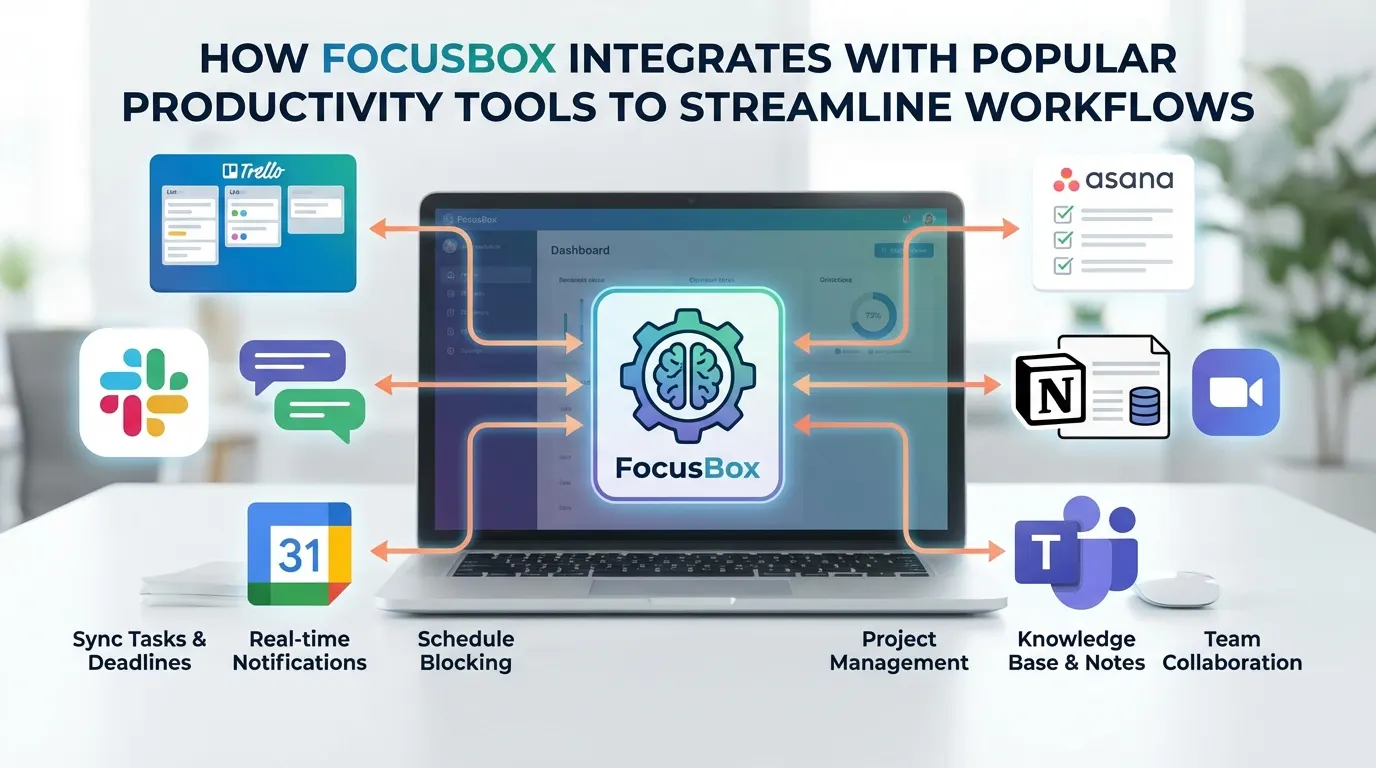
FocusBox integrates with Todoist, Asana, ClickUp, Notion, Jira and Google Calendar. The task managers import your tasks into FocusBox so you can timebox them, and Google Calendar imports your calendar events. FocusBox does not integrate with Trello or Slack. FocusBox is independent and not affiliated with any of these vendors.
How do I set up an integration for the first time?
Setup usually takes a few clicks. Open Integrations in the FocusBox app, pick your tool, and connect your account on the provider’s sign-in and authorization screen. Then import your tasks or events. Double-check that you’re logged into the correct account before approving access, especially if you use multiple workspaces.
Is my data secure when I connect third-party tools?
You connect each tool through the provider’s own sign-in and authorization screen, so you approve access there rather than typing that tool’s password into FocusBox. Read what each authorization screen asks for before you accept it, and connect only the accounts you actually want to import from.
What should I do if an integration isn’t working?
Most FocusBox integration issues are due to permission errors or connecting the wrong account. Try disconnecting and reconnecting the integration, and check that you authorized the workspace that holds your tasks. Make sure the connected tool (like Notion or Google Calendar) isn’t experiencing outages. Still stuck? Contact FocusBox support with a short description and a screenshot.
Can I customize which data syncs between FocusBox and other tools?
You control what you import. With Notion, you pick the database whose tasks you want to queue. With Jira, you pull epics, stories and subtasks from your boards. For every tool, the simplest habit is to import only today’s or this week’s work, and keep the rest in the source tool.
Are integrations available on all FocusBox plans?
Check the FocusBox pricing page for what each plan currently includes.
Key Insight: Integrations work best when your task manager stays the record and FocusBox holds the plan for today.
Whether you want to unify your productivity stack or automate a few tedious steps, FocusBox integrations offer a practical bridge between your favorite tools and a more focused workday.