Turn Sprint Work into Laser-Focused SessionsTransform Story Points into Time-Boxed Minutes
Engineers, scrum masters, and product owners who live in Jira can now reclaim deep-work time with a seamless FocusBox bridge. FocusBox is an independent tool and isn’t built, sponsored, or endorsed by Atlassian.
Why Connect Jira to FocusBox?
Focused, Predictable, High-Velocity, Sprint-Ready, Collaborative
Transform Story Points into Time-Boxed Minutes
Backlog Bloat Making Priorities Fuzzy
Auto-import only the top-priority issues, so the team always sees what matters next.
Context-Switching Kills Developer Flow
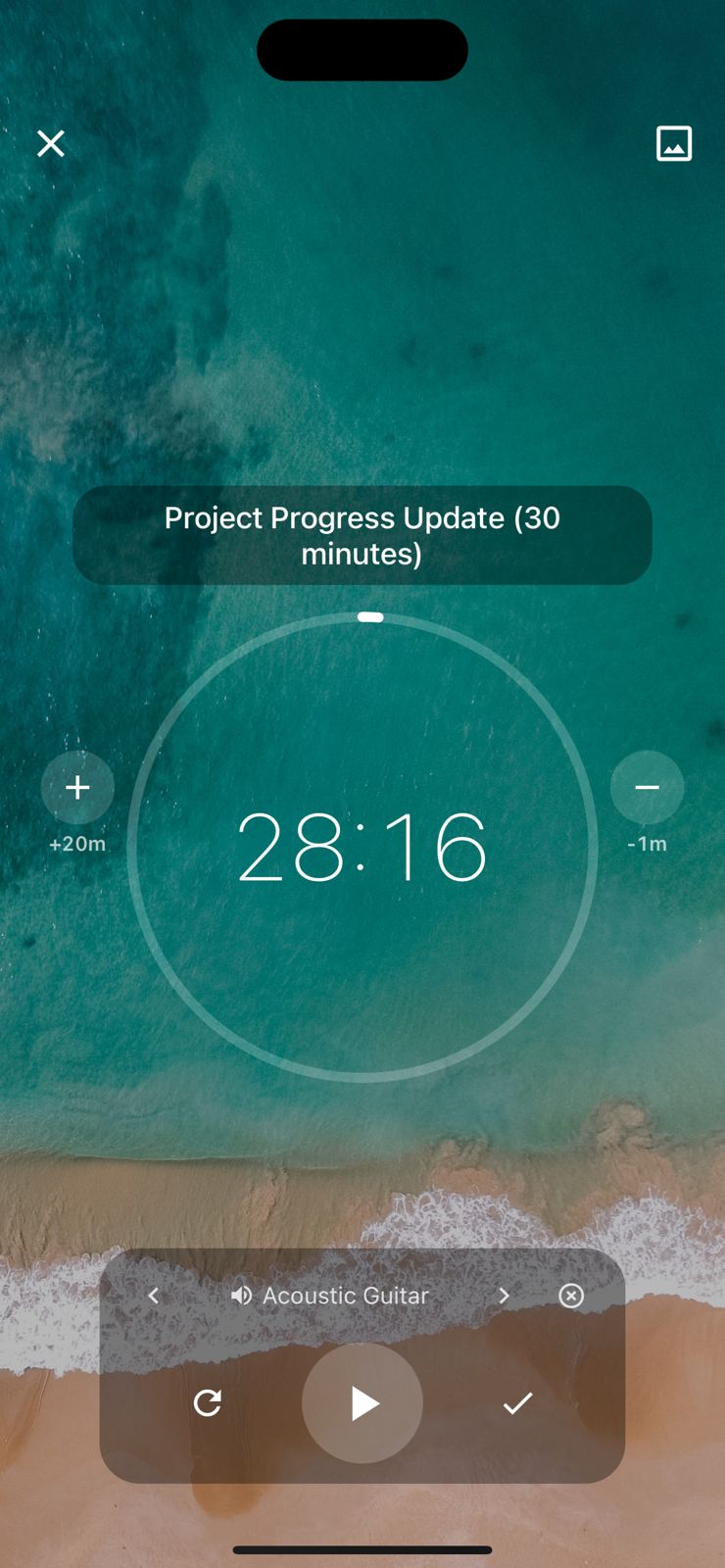
Pomodoro-style timers and optional sounds help coders stay immersed until a ticket is done.

FocusBox × Jira: Flow for Agile Teams
Focused, Predictable, High-Velocity, Sprint-Ready, Collaborative
Transform Story Points into Time-Boxed Minutes
Velocity Metrics Hard to Feel Day-to-Day
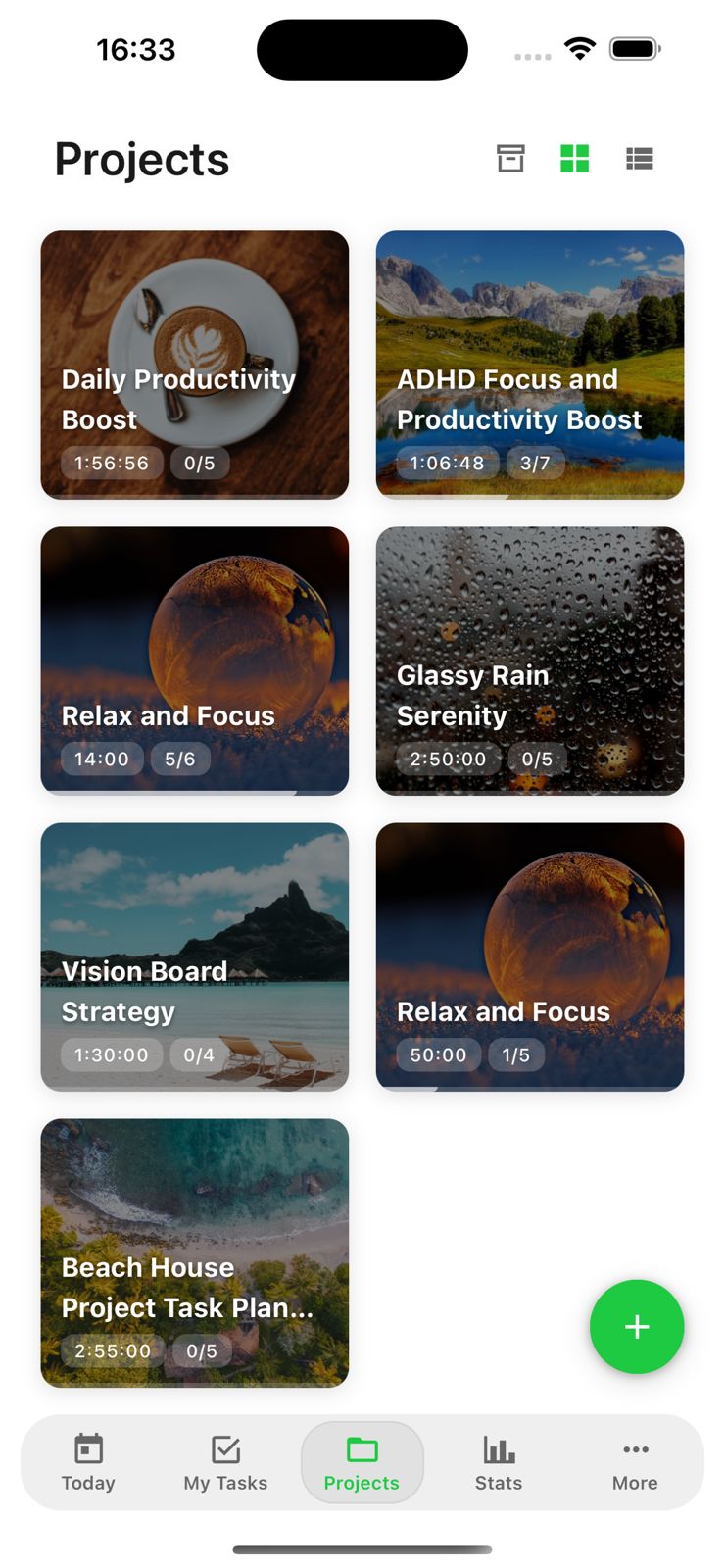
FocusBox visualises completed timers against story points, turning throughput into tangible progress.
Chat Pings and Stand-ups Fracture Attention
Timed focus windows mute interruptions and reinforce sprint discipline.


Frequently Asked Questions
How do I connect Jira to FocusBox?
Go to Settings, select Integrations, and click Connect Jira. Enter your Jira site URL and authorize FocusBox. Your Jira issues will then be available as tasks in FocusBox.
What Jira data is imported into FocusBox?
FocusBox imports your assigned issues, including titles, descriptions, priorities, and due dates. You can then organize them into focused work sessions with timers and ambient sounds.
Is the Jira integration secure?
Yes. FocusBox uses OAuth 2.0 for Jira Cloud authentication and API tokens for Jira Server. All data is encrypted in transit and at rest. You can revoke access at any time.
Can I use the Jira integration on the free plan?
Yes, the Jira integration is available on all FocusBox plans. Free plan users can import issues into one project and complete one task. Upgrade to Pro for unlimited projects and advanced features.
Which Jira projects can I import from?
After connecting Jira, you can select specific projects and boards to import issues from. Filter by assignee, status, or sprint to import only the tasks you need to focus on.
How often do Jira issues sync with FocusBox?
Issues sync automatically when you open FocusBox. You can also manually refresh the sync from the Integrations page to get the latest updates from your Jira workspace.
Does FocusBox sync changes back to Jira?
Currently, FocusBox imports issues from Jira in a one-way sync. This allows you to use FocusBox as a focused work environment without affecting your Jira workflow.
Does it work with both Jira Cloud and Jira Server?
FocusBox supports Jira Cloud with OAuth authentication. For Jira Server or Data Center, you can connect using API tokens. Contact support if you need help with your specific setup.
Start for free. No credit card needed.