Seamlessly Sync Your ClickUp Tasks with FocusBoxAchieve Unparalleled Productivity with Timeboxing
Professionals and teams using ClickUp can now supercharge their focus and productivity with FocusBox. This integration is independently developed and is not affiliated with or supported by ClickUp.
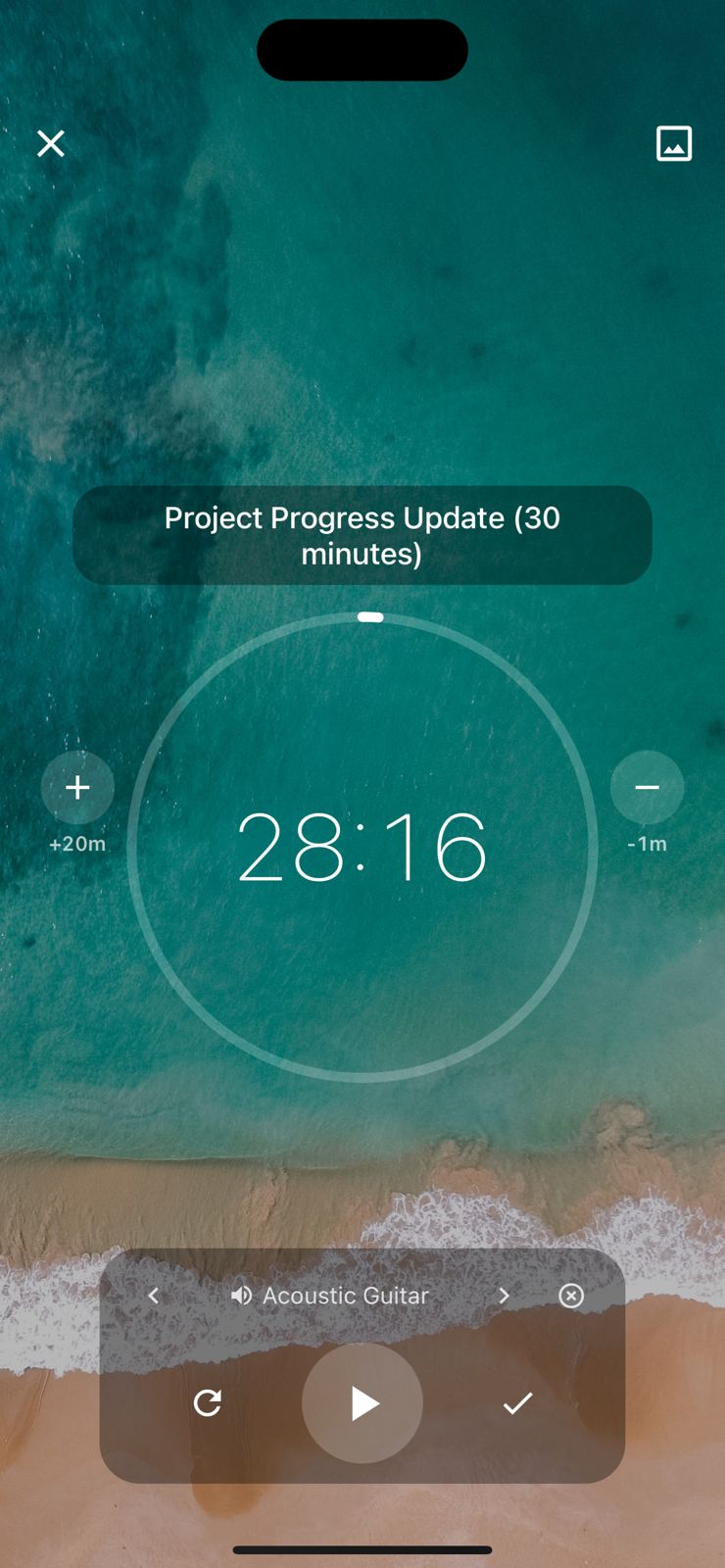
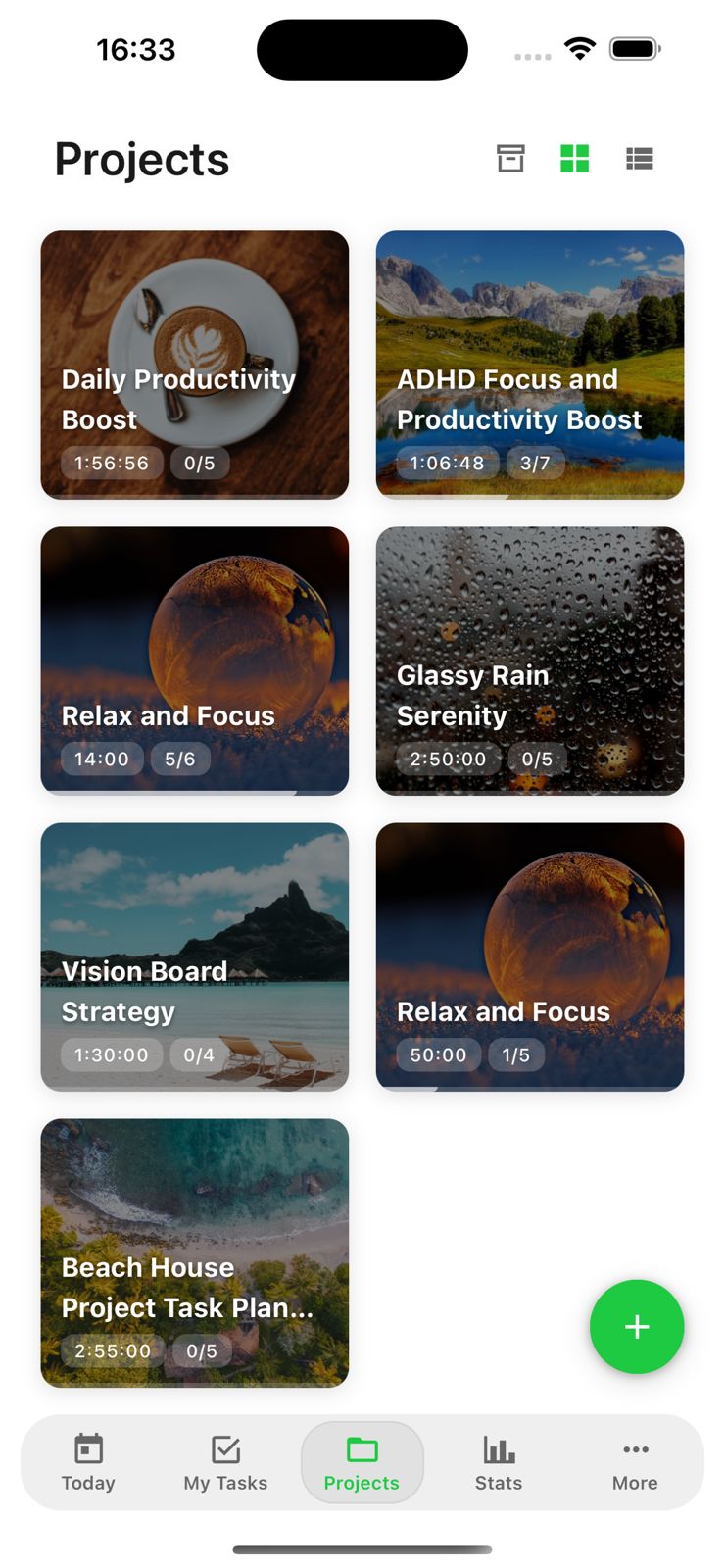
Why Integrate ClickUp with FocusBox?
Focused, Efficient, Goal-Oriented, Inspired, Task-Centric
Achieve Unparalleled Productivity with Timeboxing
Feeling bogged down by a never-ending task list?
FocusBox helps you streamline your priorities, eliminate distractions, and boost your productivity.
Finding it hard to maintain motivation throughout the day?
FocusBox offers timeboxing with immersive ambient features, keeping you motivated and productive.

Integrate FocusBox with ClickUp for Maximum Efficiency
Focused, Efficient, Goal-Oriented, Inspired, Task-Centric
Achieve Unparalleled Productivity with Timeboxing
Need better ways to measure your work progress?
FocusBox provides detailed insights and tracking tools, so you can monitor your productivity and reach your objectives efficiently.
Struggling with procrastination and missed deadlines?
FocusBox's Pomodoro timers and integrated task tools keep you on track, helping you meet deadlines effortlessly.


Frequently Asked Questions
How do I integrate ClickUp with FocusBox?
Navigate to Settings, select Integrations, and click Connect ClickUp. Authorize FocusBox through ClickUp OAuth, and your tasks will begin syncing automatically.
What ClickUp data is imported into FocusBox?
FocusBox imports your tasks, due dates, priorities, and list assignments from ClickUp. You can then use FocusBox timers, ambient sounds, and timeboxing to work through them productively.
Is the ClickUp integration secure?
Absolutely. FocusBox uses OAuth 2.0 for authentication and never stores your ClickUp credentials. All data transfers are encrypted. You can revoke access from your ClickUp settings at any time.
Can I use the ClickUp integration on the free plan?
Yes, the ClickUp integration is available on all plans. Free plan users can import tasks into one project and complete one task. Upgrade to Pro for unlimited projects and premium productivity features.
How often do ClickUp tasks sync with FocusBox?
Tasks sync automatically when you open FocusBox. You can also manually refresh the sync from the Integrations page to get the latest updates from your ClickUp workspace.
Can I choose which ClickUp spaces to import?
Yes, after connecting ClickUp, you can select specific spaces, folders, and lists to import. This lets you focus only on the tasks that matter most for your productivity sessions.
Does FocusBox sync changes back to ClickUp?
Currently, FocusBox imports tasks from ClickUp in a one-way sync. Your ClickUp workspace remains unchanged, allowing you to use FocusBox as a dedicated focus environment.
What happens to my tasks if I disconnect ClickUp?
Previously imported tasks stay in FocusBox, but new tasks will no longer sync. You can reconnect ClickUp at any time to resume importing tasks.
Start for free. No credit card needed.